An Xteink is a plain file reader: the book has to be on the microSD card, and the card has to be in the reader. There are three ways to do that, and only one of them needs Wi-Fi — plus a fourth if you run CrossPoint or CrossInk, which serve a file manager of their own to any browser on the network. What trips people up is not the copying, it is the format: EPUB and TXT open, everything else has to be converted first.
Three ways to get a book onto the reader
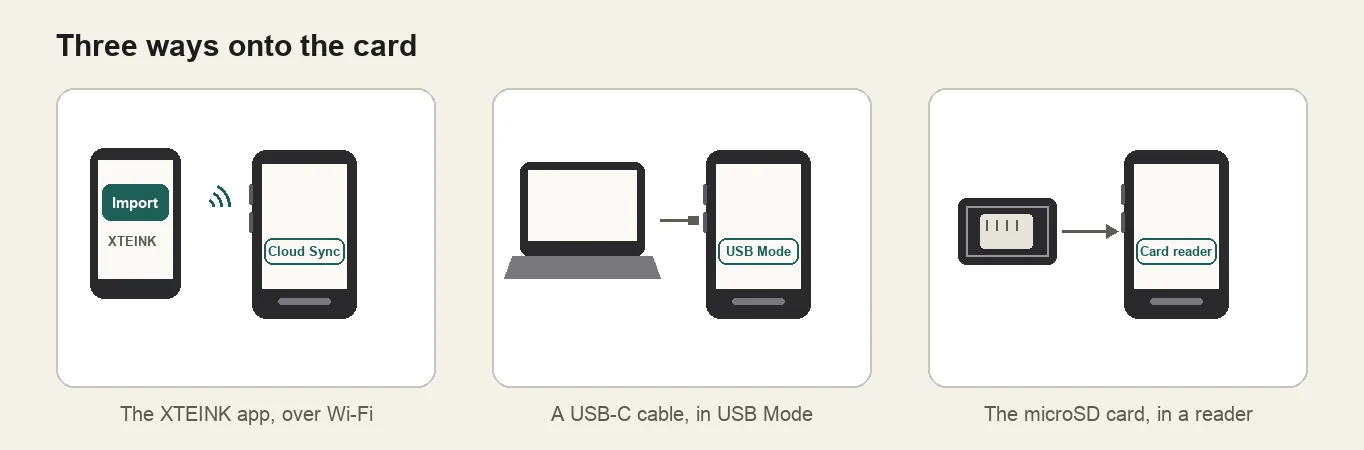
The XTEINK app, over Wi-Fi
- Bind the reader in the XTEINK app, and put the phone and the reader on the same 2.4GHz network.
- In the app: Devices → your model → Import, and pick the EPUB.
- On the reader, open the upper-right menu and choose Cloud Sync. The book pulls itself down onto the card.
This is the route to use when the reader is nowhere near a computer. It is also the only one that needs the app: the other two work on every model, whatever firmware is on it.
USB Mode, from the reader's own menu
- Connect the reader with a USB-C cable that carries data — charge-only cables are a common false alarm.
- On the reader, open the upper-right menu and choose USB Mode. The card appears as a drive on the computer.
- Copy the EPUB across, eject the drive, unplug, and open the book from the shelf.
The microSD card, in a card reader
The card comes out, and the books are plain files on it, so this is the fallback when a cable, a port or the Wi-Fi route misbehaves. The readers ship with a 16GB card and take up to 256GB. Copy the book into a folder that makes sense — a Books folder is easiest to keep tidy — and put the card back.
What opens, and what has to be converted
This is where most "the book doesn't show up" reports come from. On the stock firmware an Xteink opens EPUB and TXT; CrossPoint and CrossInk read EPUB, and Licorice opens EPUB and TXT. Nothing on the reader opens a PDF, a MOBI or AZW3, a CBZ comic, or a book with DRM in it.
| You have | What to do |
|---|---|
| EPUB, TXT | Copy it across. Nothing else needed. |
| Convert it to XTC or XTCH — the reader shows pages, not a PDF layout. | |
| CBZ, CBR, manga | CBZ to XTC, which keeps the page order and fits the panel. |
| A scan of a book | OCR first, so the pages come out as text rather than a picture of text. |
| MOBI, AZW3, KEPUB | Convert to EPUB in Calibre on the computer, then copy it across (if the file is DRM-free). |
| A DRM-protected book | It will not open. Licorice shows a plain message rather than a broken book. |
EPUB books can go straight across, but two things are worth fixing before they do: a cover at the panel's exact size (EPUB cover maker) and images the reader can actually draw (EPUB optimizer). Neither changes the text.
Managing books in a browser (CrossPoint and CrossInk)
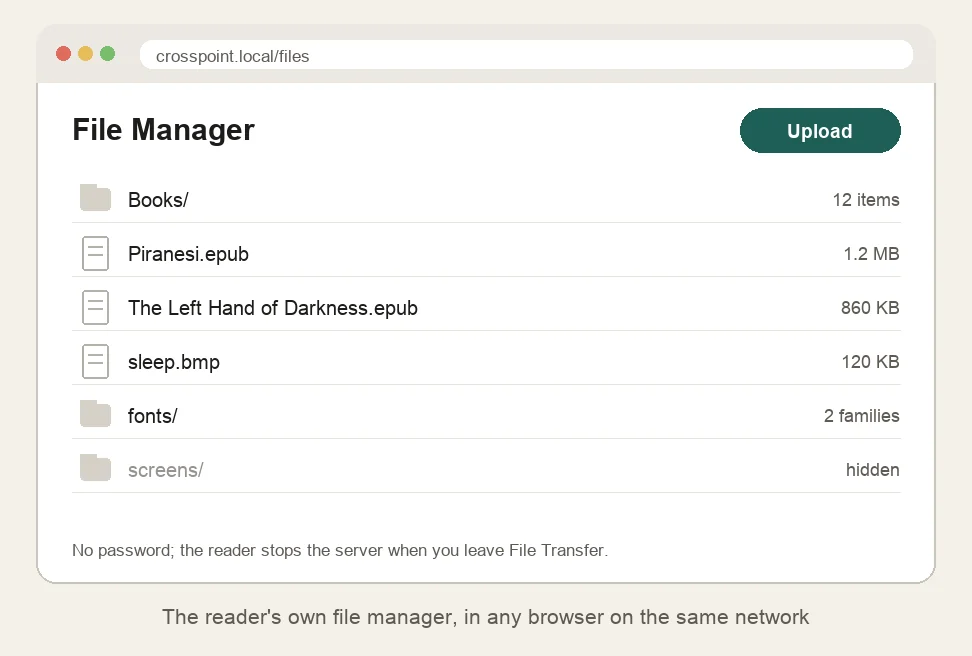
CrossPoint and CrossInk run a small web server on the reader itself, so a phone, tablet or computer on the same network can browse the card and move files in a browser — no app and no cable. On the reader open File Transfer and pick a mode.
| Mode | Use it when |
|---|---|
| Join network | The reader joins your Wi-Fi, then shows an address and a QR code; crosspoint.local usually works. |
| Create hotspot | There is no Wi-Fi to join: the reader makes an open network (“CrossPoint-Reader”) and serves 192.168.4.1. |
| Calibre wireless | Sending books from Calibre through its plugin. |
In the browser you can browse folders, upload, download, rename, move and delete files, and create folders, plus change the reader's settings, saved Wi-Fi networks, OPDS servers and fonts. WebDAV clients and Calibre can use the same server.
- An upload does not overwrite. A file with the same name is refused (“File already exists”) — delete or rename the old one first, or replace it over USB. Replacing, moving or renaming an EPUB through the web server clears that book's cached metadata, so the shelf picks up the new file.
- There is no password. Anyone on the same network can open it, and the hotspot itself is open. The server stops when you leave File Transfer, so turn it off when you are done.
- Why this site cannot do it for you. A browser only lets a device's own pages talk to it: the page at
crosspoint.localcomes from the reader (same origin), while einktools is https on another origin. A request from here tohttp://crosspoint.localis blocked as mixed content, and the reader's endpoints send no CORS headers. Download here, upload there is the only path that keeps your books off our servers.
When the book is on the card but not on the shelf
- It is the wrong format. PDF, MOBI, AZW3, CBZ and DRM-protected files are not opened by any Xteink firmware. The table above says which converter fixes which.
- The copy never finished. A drive pulled out mid-write leaves a truncated file that looks like a book in the folder and like nothing on the shelf. Copy again and eject properly.
- The shelf was reset. A firmware change — the move to Licorice especially — clears the bookshelf. Your books stay on the card; open each one once and it comes back.
- It is a second copy with the same name. The reader shows one entry; the file you edited on the computer is the one that wins. Copy over the old file rather than adding a second one.
Which Xteink do you have?
The steps above are the same on the X3, the X4 Classic and the X4 Pro, because the books live on the same kind of card and the formats are the same. The differences are in the firmware: the X3's chip is too small for Licorice and CrossNext, so the reading software — and whether TXT opens at all — depends on what is installed. Which firmware your model can run is the page for that, and where to buy one has the current prices.
After the book is on the shelf
CrossPoint and CrossInk can show the current book's cover when the reader sleeps, so the cover is worth setting before the book goes across. The rest of the sleep screen — a fixed picture, a transparent overlay, the folder names — is on the CrossPoint sleep screen page. If the book opens slowly, an EPUB that is mostly images is usually the reason; the optimizer shrinks them to the panel and strips fonts nobody on the device can use.
Questions
What file types does an Xteink open?
EPUB, and TXT on the stock firmware and on Licorice. CrossPoint and CrossInk read EPUB. Nothing on the reader opens PDF, MOBI, AZW3, CBZ or a DRM-protected book directly; those have to be converted to XTC or XTCH first.
Do I need the XTEINK app to put books on it?
No. The app is the Wi-Fi route: bind the reader, put both on the same 2.4GHz network, then Devices → your model → Import, and on the reader open the upper-right menu and choose Cloud Sync. USB Mode and the microSD card do the same job with a cable or a card reader and work on every model.
Where do the books go on the card?
They are plain files in plain folders. Copy the EPUB anywhere sensible — a Books folder is easiest to keep tidy — and the reader's shelf picks it up from the card. Nothing has to be converted or renamed for an EPUB.
Why does a book not appear on the shelf?
The usual reasons, in order: it is a PDF, MOBI, AZW3, CBZ or DRM-protected file, which no Xteink firmware opens; the copy is still running (eject the drive properly before unplugging); or the shelf was reset by a firmware change and needs the book opened once to come back.
Can I read Kindle or Kobo purchases on it?
Only if the file is DRM-free. Kindle's AZW3 and Kobo's KEPUB are locked to their shops, and Licorice now shows a clear message for DRM-protected books. Books bought DRM-free, from Project Gutenberg or Standard Ebooks, or exported from Calibre with the DRM removed where that is legal for you, open normally.
How do I get a PDF or a comic onto it?
Convert it. A PDF becomes XTC or XTCH in the browser with the PDF to XTC converter, a CBZ or CBR comic with the manga converter, and a scanned PDF goes through the OCR page first so the text is real text on the page. The files come out already at 480×800 or 528×792.
Can I manage the books from a web browser?
On CrossPoint and CrossInk, yes: File Transfer → Join network or Create hotspot, then open http://crosspoint.local/ (or the address shown on the reader) to browse, upload, download, rename, move and delete files, and to change settings and fonts. The stock firmware and Licorice have no browser file manager, so those use the XTEINK app, USB Mode or the card. einktools itself cannot push files into that page: the reader's server is plain http on your network and only its own pages are allowed to talk to it.
Is it Xteink or Xtink?
The reader is Xteink. Forum posts and search boxes also spell it Xtink, X-Teink and XTeink; it is the same device, and the steps on this page are the same for all three models.
Does a new book need a cover?
No, but a shelf of blank tiles is hard to scan, and CrossPoint can show the cover as the sleep screen. The EPUB cover maker writes a cover at the panel's exact size into the book, for one file or a whole shelf.