Free · Online · 30+ e-readers or any size
E-ink dithering toolAny image, 4 or 16 grays.
E-ink panels show only a handful of grays: 16 on Kindle, Kobo and Boox, 4 on Xteink. Dithering turns the missing shades into patterns of dots, so gradients stay smooth instead of breaking into bands. Drop in a picture, pick your reader or a custom size, and see the dithered result before you download.
- Pixel-perfect fit with no black bars
- True e-ink preview
- Photos never leave your device
- Xteink X4 · X4 Classic
- 480 × 800
- 4 grays
- .bmp
Drag the photo to reposition · live preview matches your screen
Sample: Girl with a Pearl Earring, Johannes Vermeer (public domain)
No picture that fits?
Don't see your model? Take a screenshot on your reader to find its pixel size (on Kindle, tap opposite corners simultaneously), then choose Custom.
Keeps just the person, pet or object on plain paper. Runs on your device; the first use is a one-time 59 MB download.
Lower strength keeps soft edges like hair and fur. Keep background fades the old background in instead of erasing it.
Fine-tune
CrossPoint / CrossInk: copy sleep.bmp to the root of the SD card (or several BMPs into a folder named .sleep), then Settings → Display → Sleep Screen → Custom.
Stock firmware: copy the BMP to any folder on the card. On the reader, Open Folder → pick the image → tap the preview → Set as Power-off Screen.
Something not working, or an idea? Tell us. We read everything.
How it works
 1
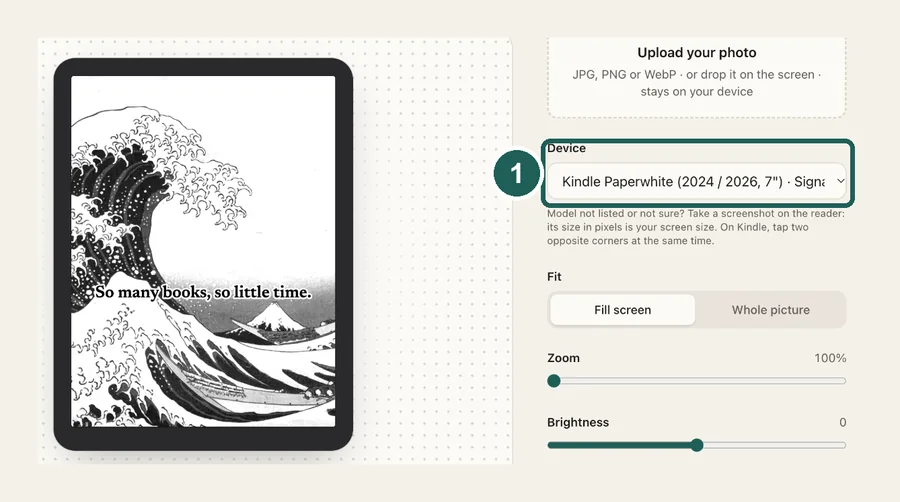
1Pick the screen
Choose your e-reader for its exact resolution and gray levels, or Custom size for anything else (a dashboard panel, a badge, an e-paper module).
 2
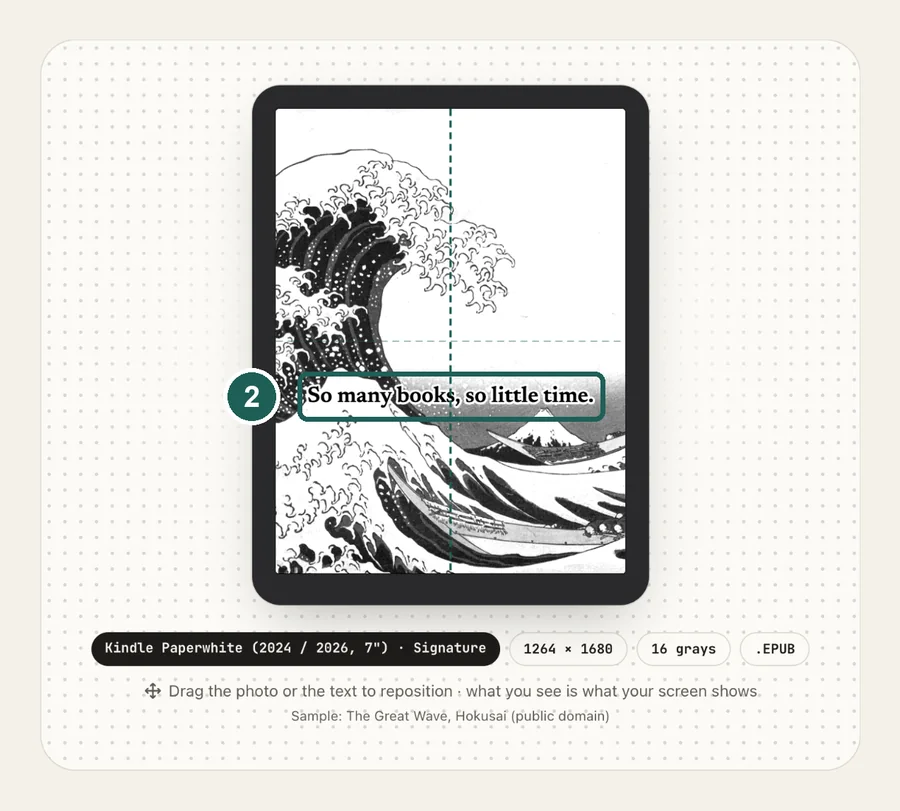
2Choose a Look
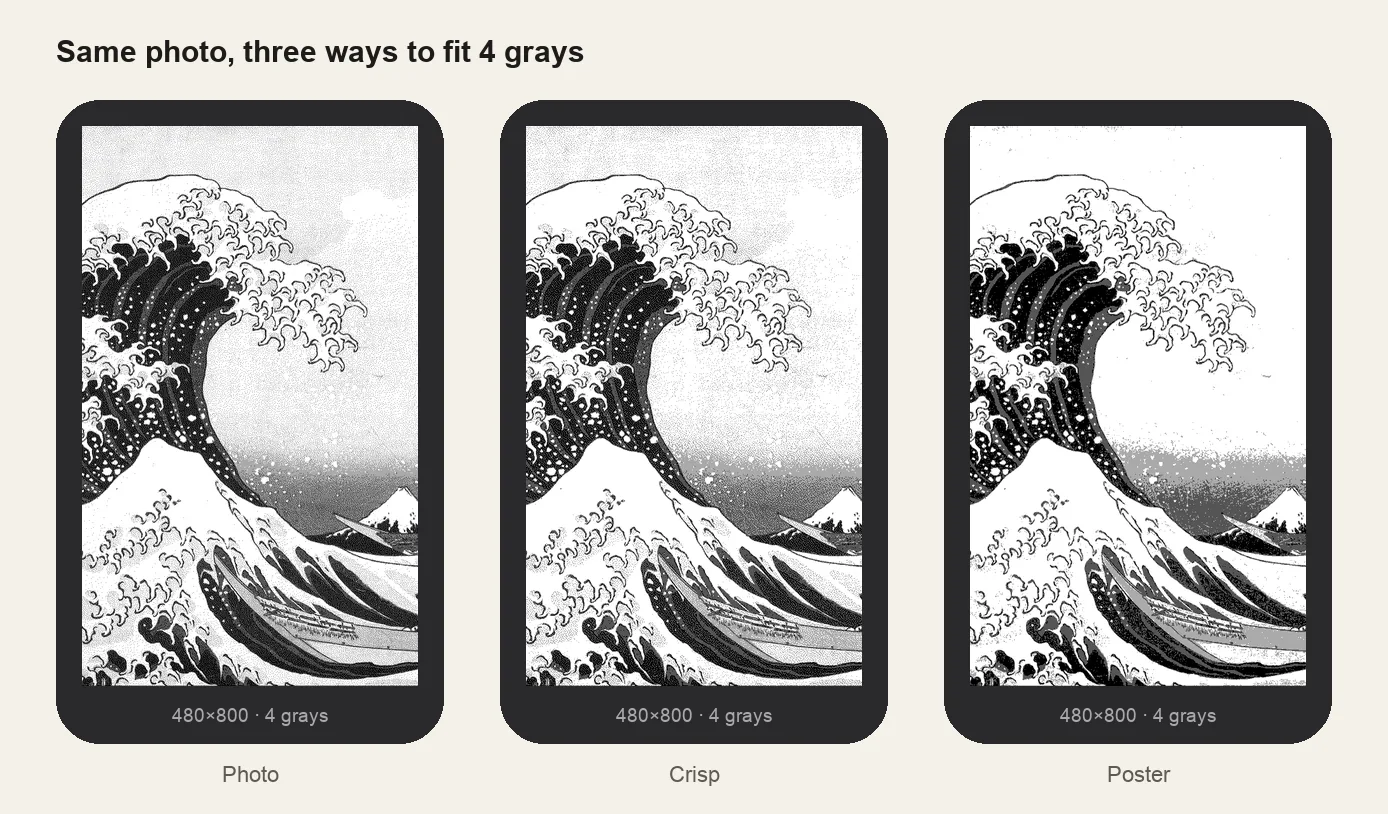
Photo keeps soft gradients (Floyd–Steinberg on 4-gray screens). Crisp uses Atkinson dithering: cleaner whites, bolder edges. Poster flattens to 4 flat grays with no dots. Ink is black and white only.
 3
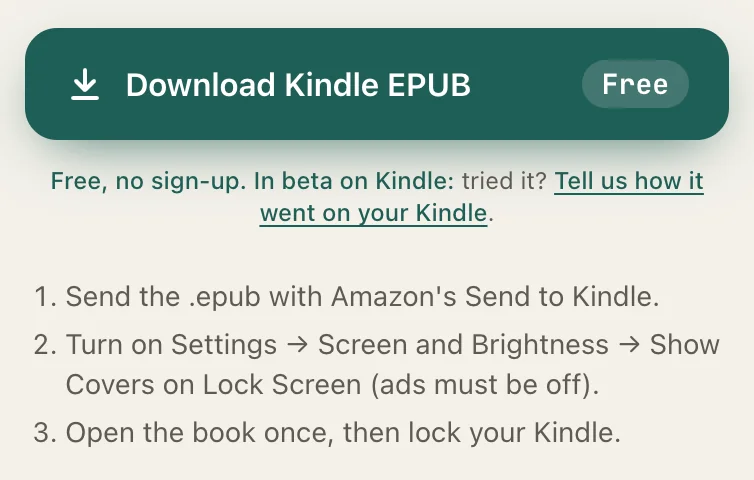
3Download
You get the file your reader uses: PNG, BMP for Xteink, or an EPUB cover for Kindle. The preview is pixel for pixel what you download.
Photo, Crisp or Poster?
Getting a good result
- Add contrast before dithering. Phone photos rely on color to separate things; in gray they go flat. Raise contrast until the subject stands out in the preview.
- Fewer grays, simpler pictures. At 4 grays, silhouettes, line art and high-contrast portraits beat busy landscapes.
- Remove the background for portraits and objects, then keep the subject on white or black paper.
- Need a picture? The public-domain wallpaper gallery has art that dithers well, framed for each reader.
Common questions
›What is dithering?
A way to show shades a screen can't display by mixing the ones it can. A mid-gray on a black-and-white screen becomes a fine checkerboard of black and white dots; from reading distance the eye averages it back into gray.
›Which dithering does this tool use?
Error diffusion. Crisp uses Atkinson dithering, which drops a quarter of the error for cleaner whites and punchier edges (the classic Mac look). Photo uses Floyd–Steinberg on 4-gray screens; on 16-gray screens it just maps to the 16 levels, which already look smooth. Poster maps to 4 flat grays with no dots, and Ink is Atkinson down to pure black and white.
›4 grays or 16?
Use what your panel has. Xteink X4, X4 Pro and X3 show 4. Kindle, Kobo, Boox, PocketBook, Supernote and reMarkable show 16. Picking your reader sets this for you; with Custom size, BMP output is 4 grays and PNG is 16.
›Should I dither if my reader dithers anyway?
Yes, if you want to choose the result. Firmware dithering is usually tuned for text and book covers, and you only see it on the device. Dithering here lets you adjust contrast and the Look until the preview reads well, and the reader then shows those exact pixels.
›Can I use it for e-paper modules or e-ink dashboards?
Yes. Pick Custom size, enter the panel resolution, and download a PNG (16 grays) or BMP (4 grays).
›Is it free?
Yes, free with no sign-up and no watermark. Images never leave your browser.