Free · PNG · For KOReader
KOReader screensaver makerKindle & Kobo, exact size.
KOReader can show your own picture when the reader sleeps: a single image, or a random one from a folder. This tool makes those pictures at your Kindle's or Kobo's exact resolution, with contrast tuned for e-ink, and tells you where they go.
- Pixel-perfect fit with no black bars
- True e-ink preview
- Photos never leave your device
- Kindle Paperwhite (2024 / 2026, 7") · Signature
- 1264 × 1680
- 16 grays
- .png
Drag the photo to reposition · live preview matches your screen
Sample: Girl with a Pearl Earring, Johannes Vermeer (public domain)
No picture that fits?
Don't see your model? Take a screenshot on your reader to find its pixel size (on Kindle, tap opposite corners simultaneously), then choose Custom.
Keeps just the person, pet or object on plain paper. Runs on your device; the first use is a one-time 59 MB download.
Lower strength keeps soft edges like hair and fur. Keep background fades the old background in instead of erasing it.
Fine-tune
- Copy the PNG to any folder on the reader, for example a new folder named screensavers.
- In KOReader: top menu → ⚙ → Screen → Screensaver. Choose a random image from a folder (or a single image), then pick that folder under Screensaver settings.
- Lock the reader from inside KOReader to see it.
Something not working, or an idea? Tell us. We read everything.
How it works
 1
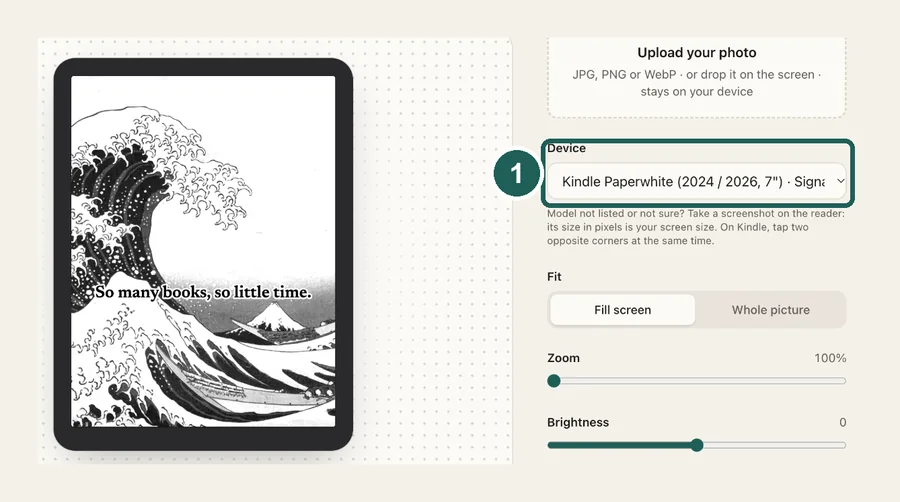
1Pick your reader
Every Kindle and Kobo, each at its native resolution. The file is a plain PNG, which is what KOReader wants.
 2
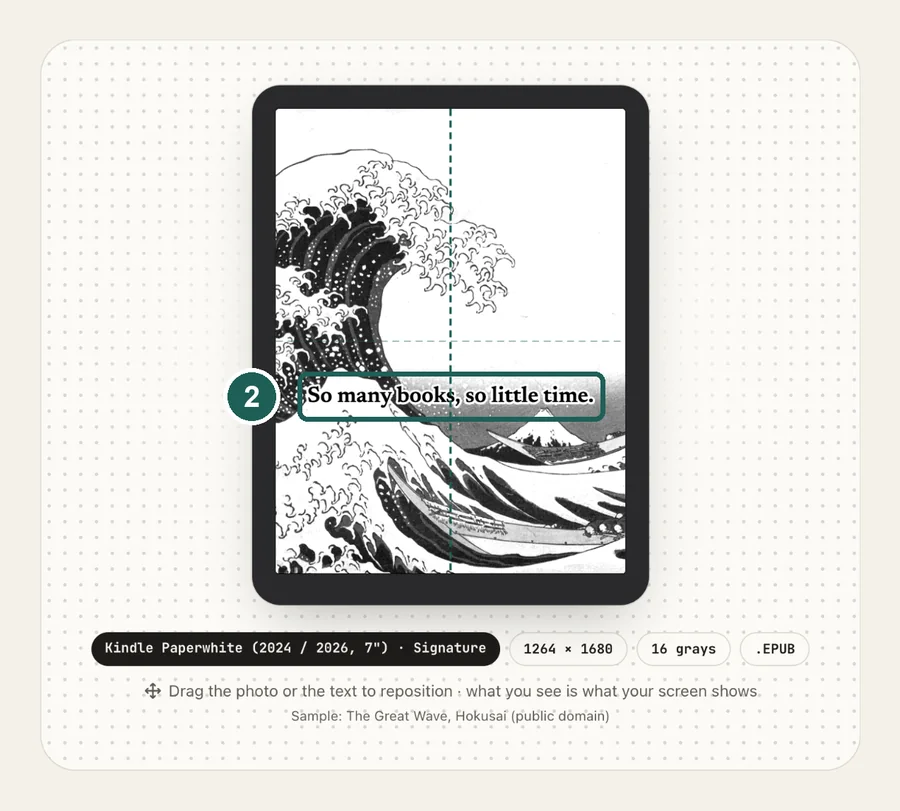
2Frame and tune
Drag to reposition and raise contrast in the grayscale preview. Add several photos to get a set for a random screensaver.
 3
3Point KOReader at it
Copy the PNGs into a folder, then in KOReader choose Screen → Screensaver and pick that folder.
Setting it up in KOReader
- Make your pictures above and download them. With several photos you get a zip with a
screensaversfolder. - Connect the reader by USB and copy the folder anywhere on it, for example next to the
koreaderfolder. - Open KOReader. Top menu → gear icon → Screen → Screensaver.
- Choose to show a random image from a folder (or one image), then select your folder in the screensaver settings.
- Lock the reader from inside KOReader.
Kindle/ or KOBOeReader/├── koreader/└── screensavers/ ← choose this folder in KOReader├── 01.png└── 02.png
KOReader shows any PNG or JPG, but a picture at the exact screen size, already tuned for 16 grays, looks cleaner than one it has to scale. On a Kindle without KOReader, use the Kindle lock screen maker instead: it works with no jailbreak.
Common questions
›How do I set a custom screensaver in KOReader?
Copy your images (PNG or JPG) into any folder on the reader. In KOReader open the top menu, tap the gear icon, then Screen → Screensaver. Choose to show an image or a random image from a folder, then choose that folder in the Screensaver settings.
›What size should a KOReader screensaver be?
Your screen's exact resolution, in portrait. For example 1264×1680 for the 7-inch Kindle Paperwhite, 1072×1448 for the Kindle Basic or Kobo Clara, 1860×2480 for the Kindle Scribe. The screen size chart lists every model.
›Why does my Kindle still show its own lock screen?
KOReader only controls the sleep screen while it is running. If you lock the Kindle from the Kindle home screen, Amazon's lock screen shows instead. Lock it from inside KOReader.
›I can't find the screensaver option
Update KOReader: the menu has moved between versions. In current builds it is under the gear icon → Screen → Screensaver.
›Can I use a book cover instead?
Yes, KOReader can also show the current book's cover. A custom image or folder is for when you want your own picture.
›Does it work without KOReader?
A Kindle without KOReader needs a book-cover EPUB instead: use the Kindle lock screen maker. A Kobo can use its own .kobo/screensaver folder: use the Kobo screensaver maker.