Kobo shows your own picture while it sleeps if you put it in one folder: .kobo/screensaver. On a Mac the hard part is that the folder is invisible, because Finder hides anything whose name starts with a dot. Here is the whole job, on Mac, Windows, and without a computer.
1. Make the picture
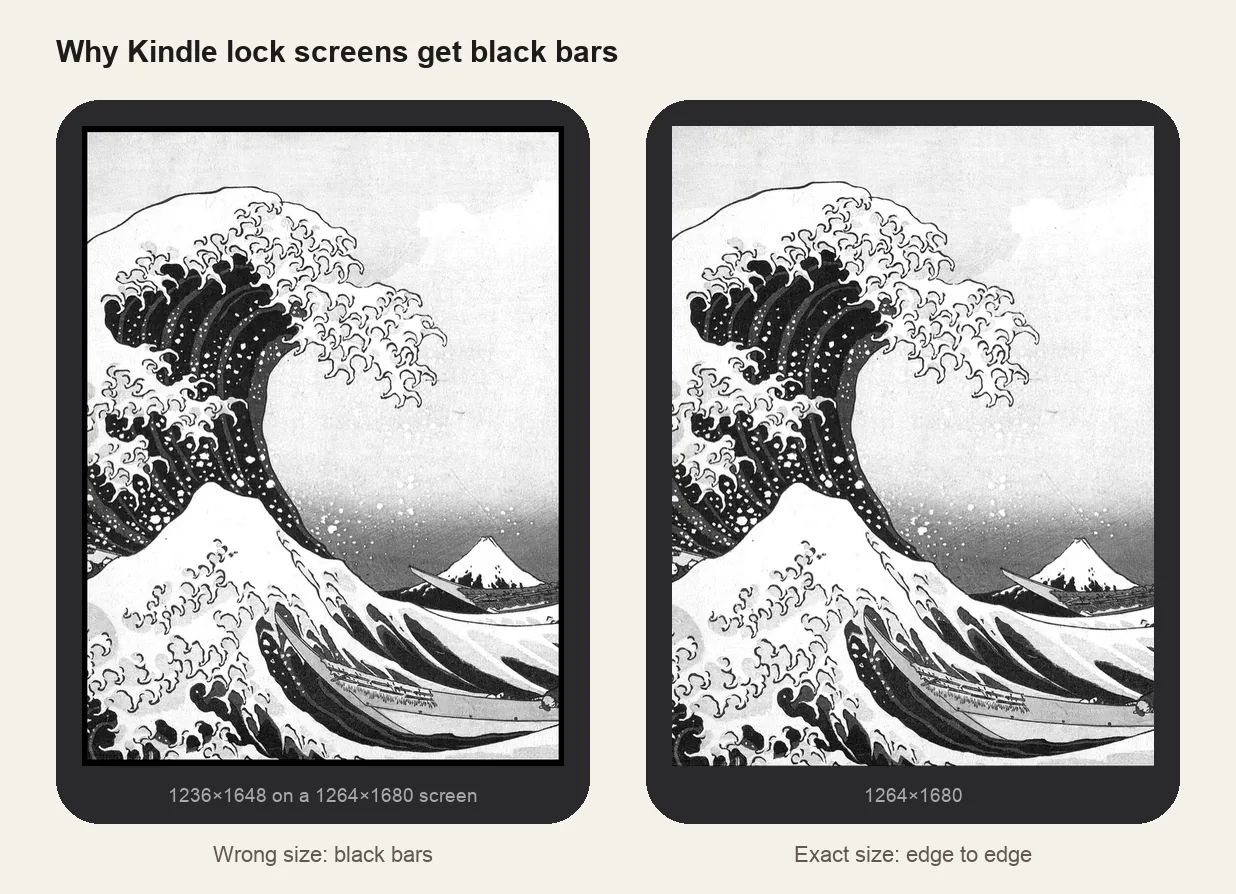
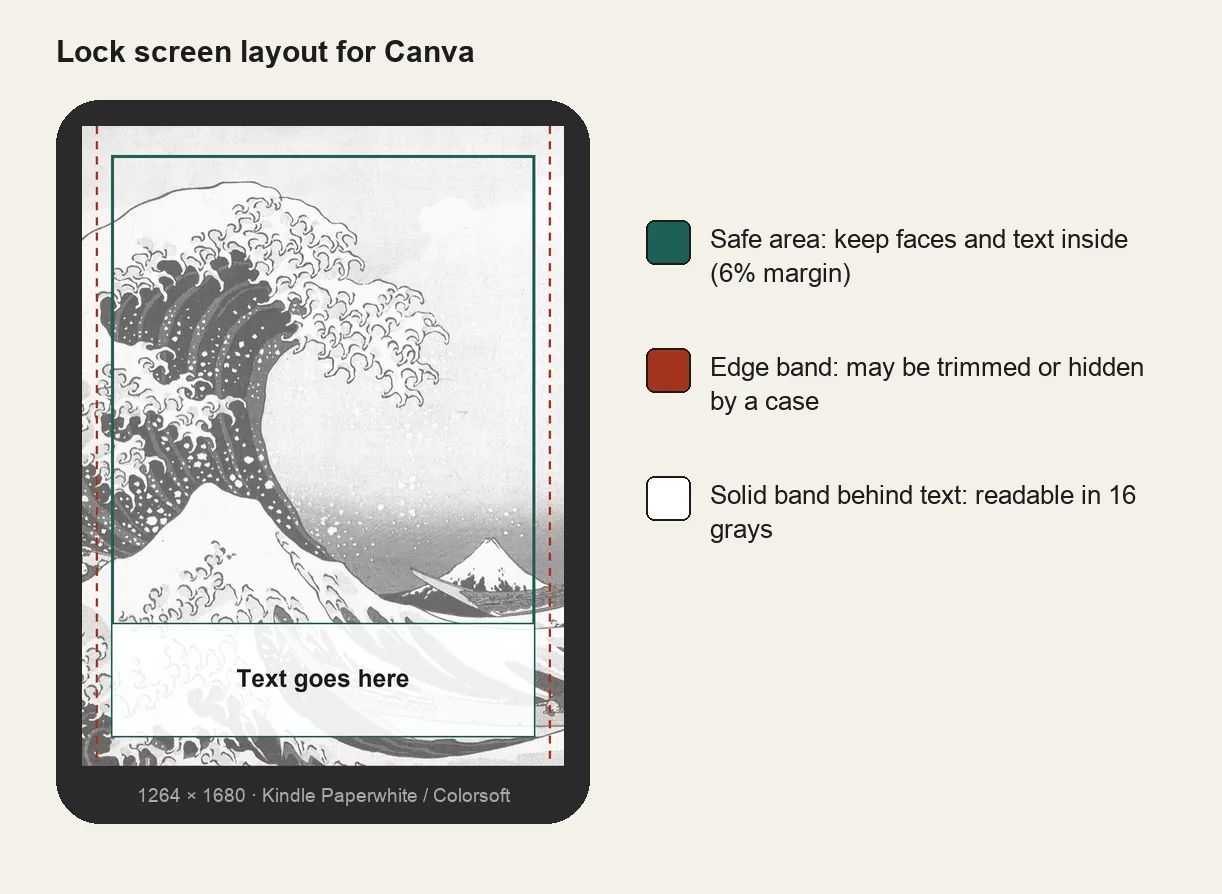
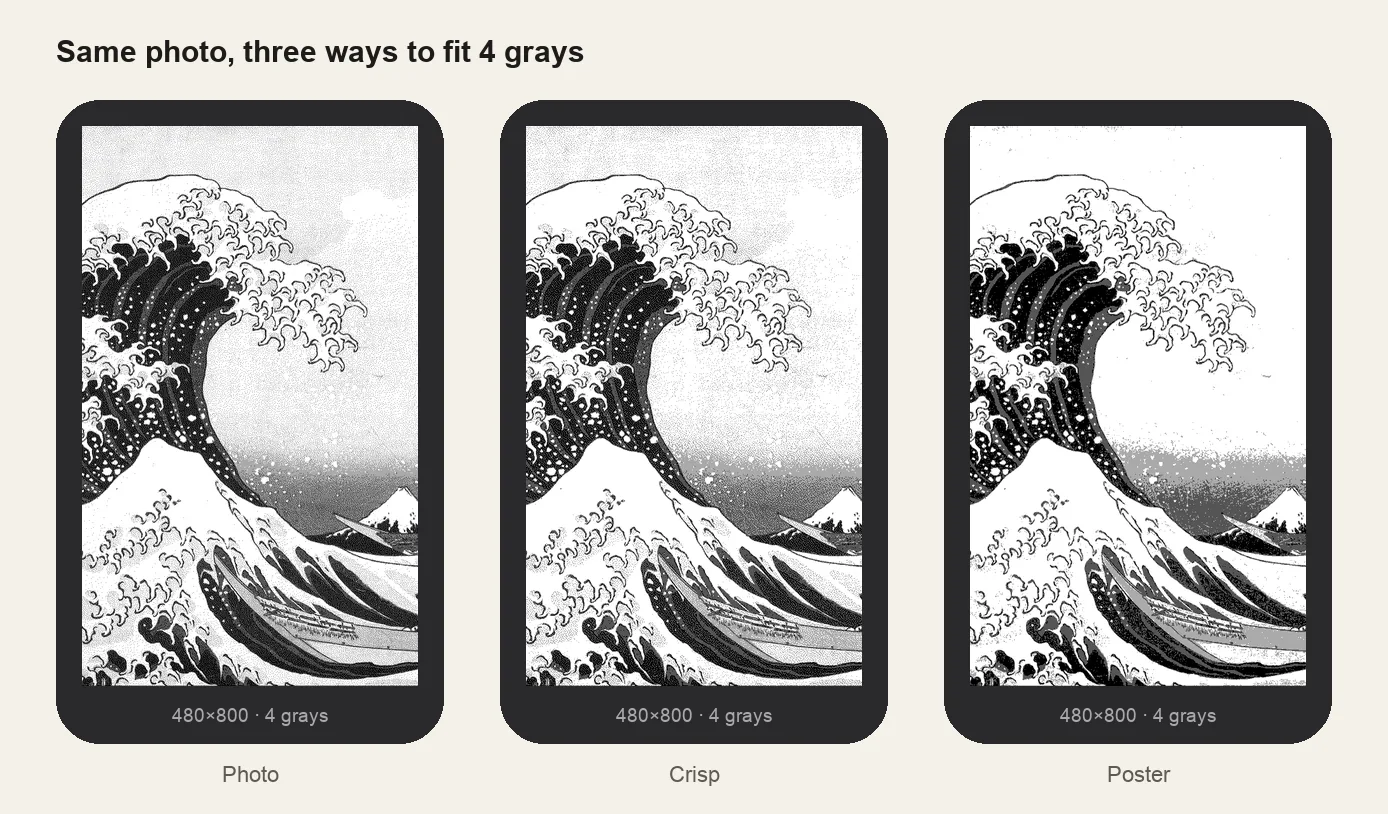
Use your Kobo's exact size so nothing is cropped or padded: Clara (HD, 2E, BW, Colour) is 1072×1448, Libra 2 and Libra Colour are 1264×1680, Sage is 1440×1920. The Kobo screensaver maker crops any photo to that size, lets you raise contrast for e-ink, and saves a PNG.
2. Show hidden folders on your Mac
- Plug the Kobo in with its USB cable and tap Connect on the Kobo's screen.
- Open Finder. The Kobo appears in the sidebar as KOBOeReader. Open it.
- Press Cmd + Shift + . (period). Grayed-out hidden folders appear, including
.kobo.
3. Create the screensaver folder and copy the picture
- Open
.kobo. If there's no folder calledscreensaver, create it (File → New Folder). Lowercase, singular, exactlyscreensaver. - Drag your PNG or JPG into it. Several pictures work: Kobo picks one at random each time it sleeps.
- Delete any files starting with
._that macOS left behind in the folder. - Eject the Kobo (right-click KOBOeReader → Eject) before unplugging.
KOBOeReader/└── .kobo/ ← hidden: Cmd + Shift + .└── screensaver/ ← lowercase, singular└── my-screensaver.png
4. Switch it on
On the Kobo, go to Settings → Energy saving and privacy and turn on Show current read and Show book covers full screen. Open a book, then press the power button. With no book open, Kobo shows its own Sleeping screen instead. Firmware 4.13 or later is needed.
On Windows
Same folder, different switch: in File Explorer open View → Show → Hidden items (Windows 10: the View tab, tick Hidden items). Then follow steps 3 and 4.
Without a computer
iPhone and iPad can't do it: the Files app hides names starting with a dot, so .kobo never shows up. An Android phone with a USB-C cable and a file manager set to show hidden files usually works, because the Kobo connects as an ordinary USB drive. Otherwise, borrow a computer for two minutes; once the pictures are in, they stay through updates.
Common problems
- My Mac copied the picture but the Kobo shows a blank screen. macOS leaves small companion files whose names start with ._ next to what you copy. Delete any ._ files inside .kobo/screensaver, keep only your JPG or PNG, then eject and try again.
- The screensaver is too dark. The front light switches off when the Kobo sleeps, so the picture looks darker than while reading. Brighten the image before copying it: lift brightness 10–20 and avoid large black areas.
- Still the book cover or Sleeping screen. Check the folder name, the two settings and that a book is open. The troubleshooting guide covers the rest.