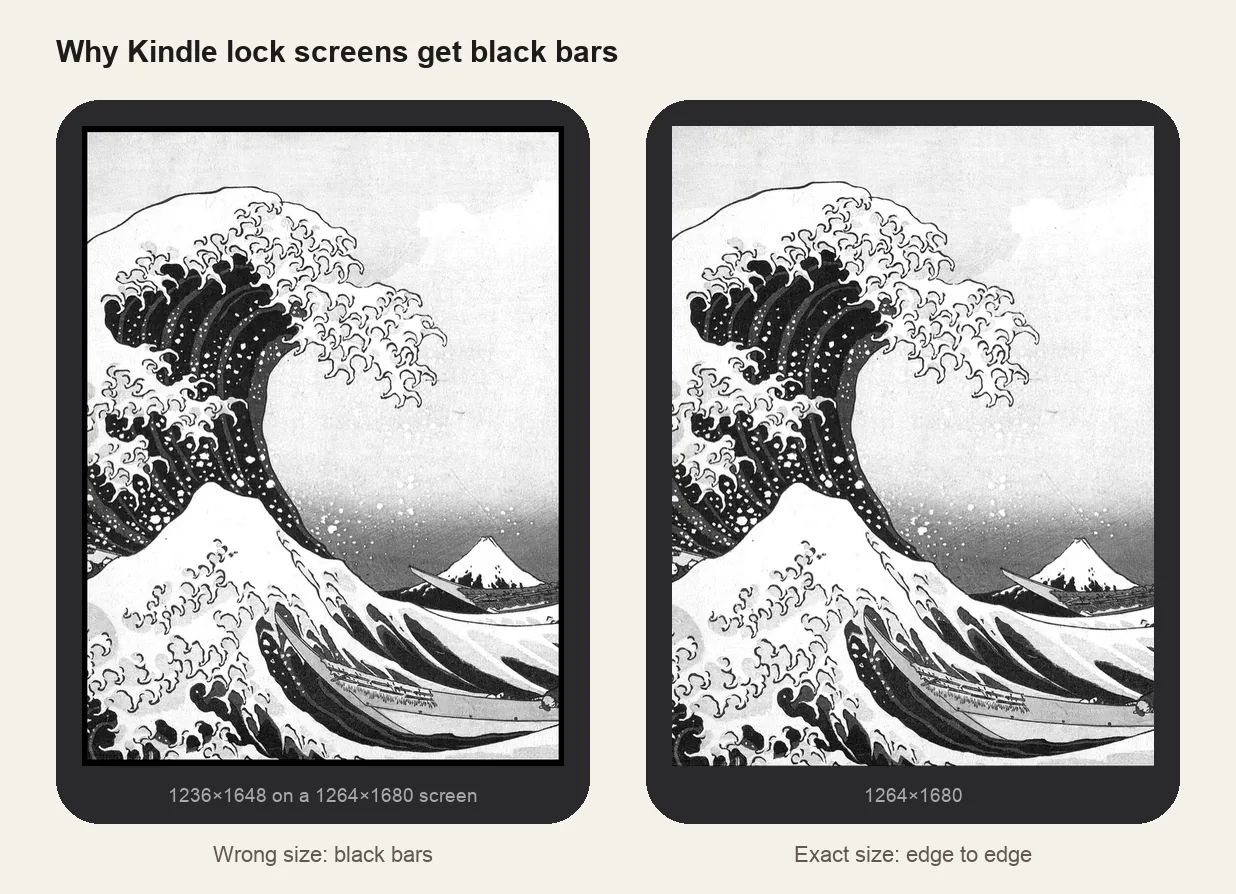
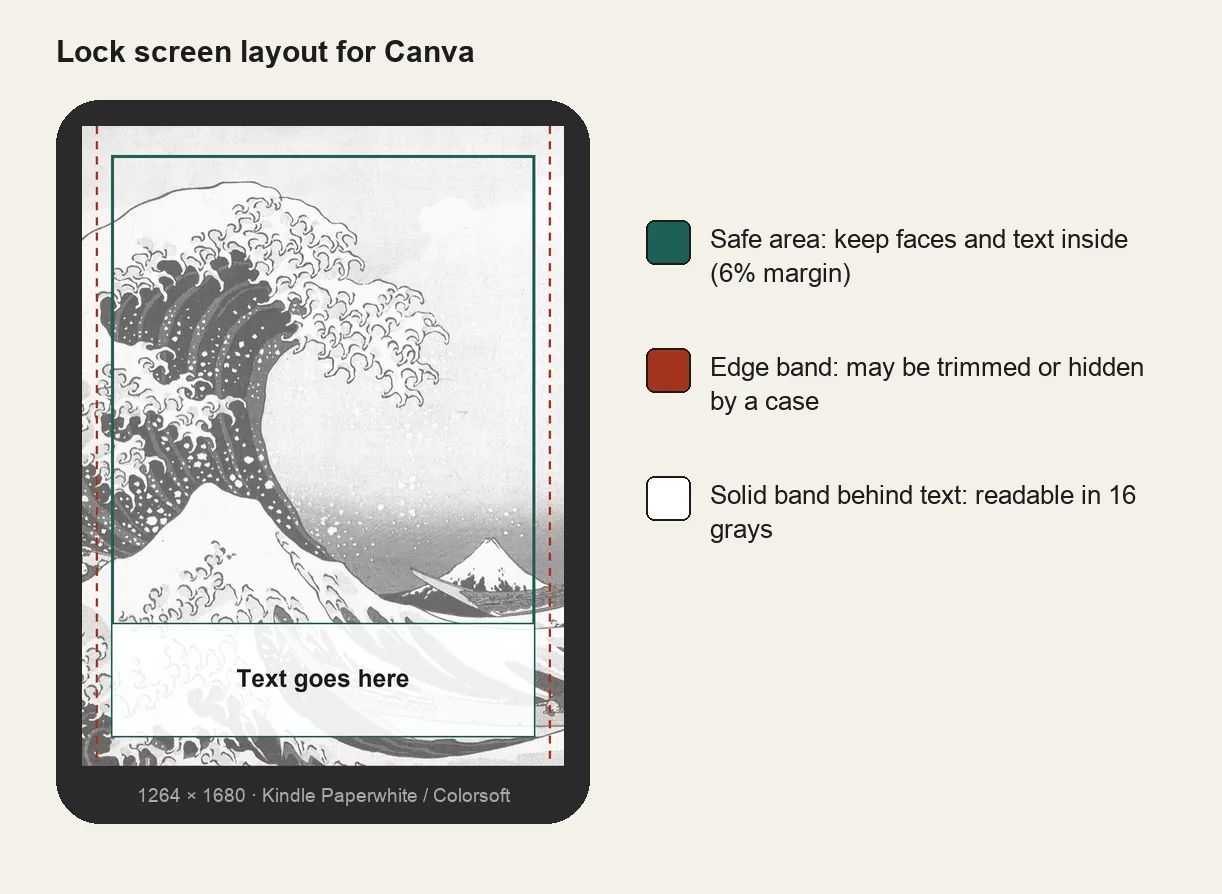
Kindles sold "with Special Offers" are cheaper because they show ads on the lock screen. You can turn the ads off later from your Amazon account. That also unlocks the setting that shows book covers on the lock screen, which is how you get a custom picture there.
Remove Special Offers from your Amazon account
- On a computer or phone browser, sign in to Amazon and open Account → Content Library → Devices (sometimes labeled Manage Your Content and Devices → Devices).
- Choose Kindle, then your device.
- Next to Special Offers (or Kindle Lock Screen Ads), choose Remove offers. Amazon charges a one-time fee, shown before you confirm.
- On the Kindle, sync or restart. The ads disappear from the lock screen.
Fees and menu names vary by country and change over time. If you don't see the option, Amazon customer service can tell you what applies to your device.
What your lock screen can show afterwards
- Default screensavers: Amazon's built-in illustrations.
- Book covers: turn on Settings → Screen and Brightness → Show Covers on Lock Screen to see the cover of your current book.
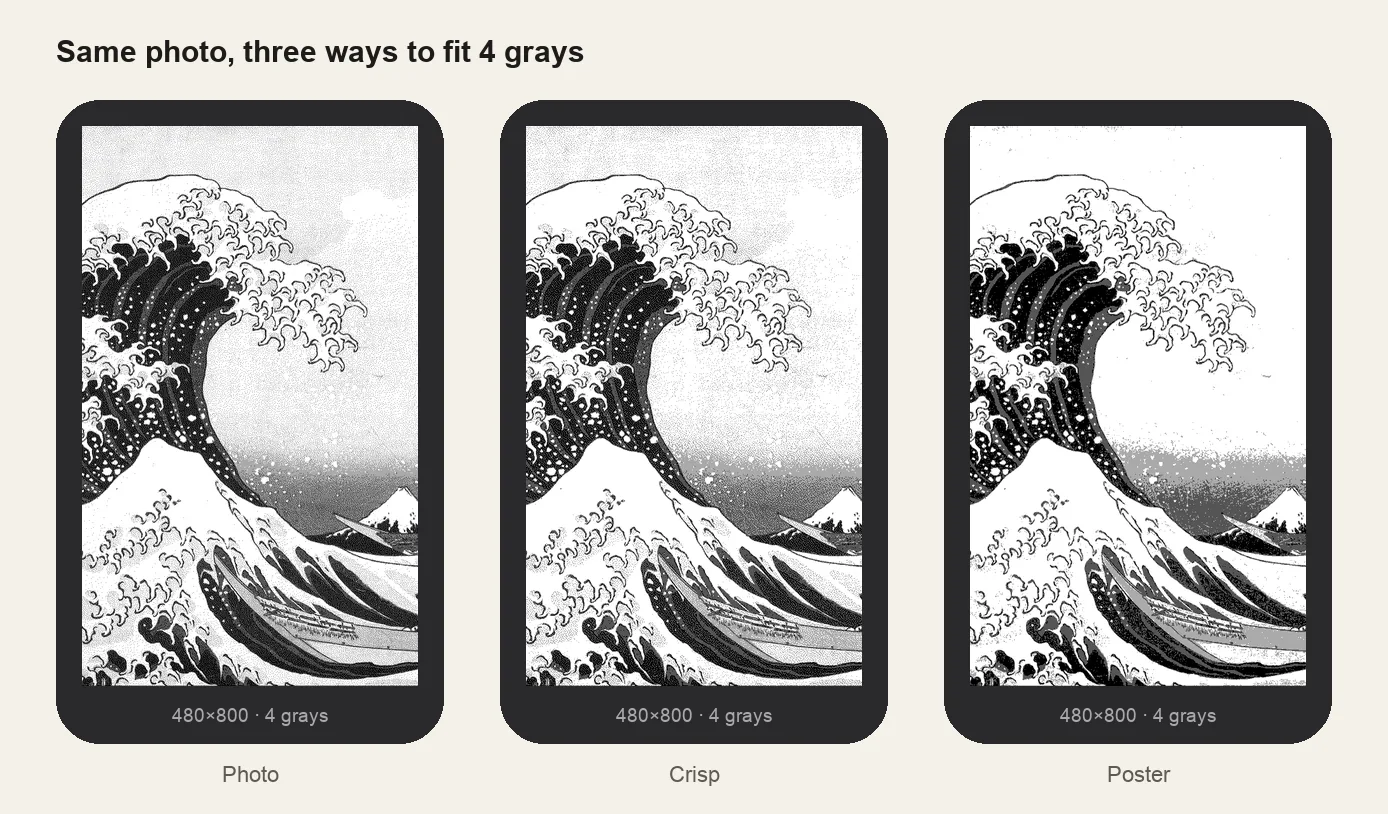
- Your own picture: use the cover setting with a book whose cover is your photo. The custom lock screen guide walks through it, and the lock screen maker builds the file.